MADE FOR iOS
Connected.
On your
terms.
Get an access key, paste it into the app and tap the big button. Your server and settings stay close at hand.
A public App Store link has not been published yet. We will add it when the app becomes available.
01 / THE APP
Paste your key.
Then connect.
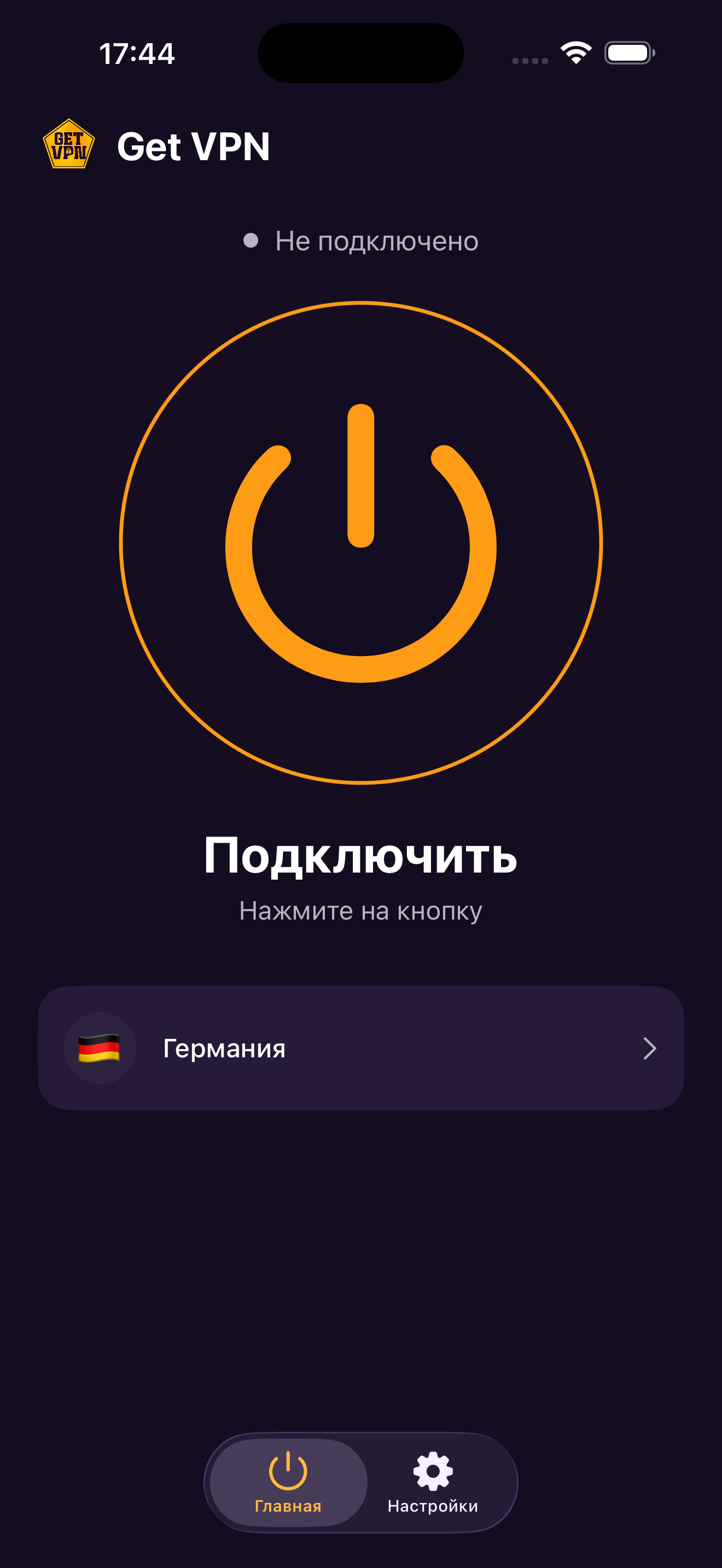
Get an access key in our Telegram bot and paste it into Get VPN. The app loads a compatible configuration and keeps the essential actions on one screen.
Copy your subscription link
Get the HTTPS subscription link in @GetVPN_xbot. Copy the entire link, paste it on the Get VPN sign-in screen and tap Sign in.
Choose a server
Open the location row and select an available server. The list and availability depend on your key.
Tap the power button
Connection status is visible straight away. Preferences, diagnostics and key management have their own settings tab.
02 / YOUR ACCESS KEY
A key in the bot.
VPN in the app.
Get or buy your key in @GetVPN_xbot. Connect, choose a server and adjust settings in Get VPN. Two straightforward steps.
Get an access keyGet an access key
Visit @GetVPN_xbot. Check the seller and conditions on the actual purchase screen.
Sign in with your key
Copy the entire HTTPS subscription link, paste it on the Get VPN sign-in screen and tap Sign in. Do not publish it or share it with others.
Need help?
Use @vpnhelp_xbot or our email for support — these are separate from the sales bot.
This website does not take payments. The seller shows the period, price, limits and renewal terms before payment. This page promises neither automatic delivery nor specific prices.
Managing payments and refunds03 / CLEAR INFORMATION
Your data.
In plain
language.
Our policy explains what stays on your device, what is needed to provide access, and how to request deletion. We do not promise complete anonymity.
Read the policyA tracker-free website
No advertising pixels, analytics scripts, registration or payment forms.
On-device preferences
Keys, your chosen server, settings and diagnostics you enable are app information.
Control and support
Your provider sets access conditions. Contact us about the app or information you have shared with support.
04 / BEFORE YOU CONNECT
The essentials.
Simply explained.
Where can I download Get VPN?
There is no public App Store link yet. Until it is available, this website introduces the app and provides support and policy pages.
Where do I get a key?
Visit @GetVPN_xbot to get or buy an access key. Check the price, seller and terms before paying. The separate @vpnhelp_xbot channel is for support.
How do I turn on the VPN?
Paste a compatible key into the app, select an available server and tap the large power button. Allow iOS to add a VPN configuration if prompted.
Which devices are supported?
The app is designed for iOS, primarily iPhone. Device and iOS requirements will be listed in the published App Store listing.
How do I cancel renewal?
Follow the actual key seller’s rules. If a particular purchase was billed by Apple, manage it in Apple subscriptions. Removing a key or app does not itself cancel payments.
What if the VPN will not connect?
Check your internet without VPN, access expiry and selected server. If the problem persists, contact us with the device model, iOS version and error text. Do not share secret VPN links.
HELP IS CLOSE
Let’s work
it out.
Connection, purchase or a question about your data — choose the way you prefer to get in touch.